
Welcome to the Accessibility Guide for Faculty
Creating accessible course content ensures that all students can fully engage with learning materials and reflects St. Petersburg College’s commitment to inclusive, high-quality education. In response to the U.S. Department of Justice’s digital accessibility initiative, SPC is working toward full compliance by April 24, 2026, with a goal for every course to achieve and maintain an accessibility score of 90% or higher.
- SPC uses YuJa Panorama, an integrated Canvas tool, to identify accessibility issues and provide remediation options directly within courses.
- This guide explains how to check your accessibility score, interpret results, and efficiently address common issues.
- The IDEAS team offers open labs, webinars, and individualized support throughout the semester to help faculty meet accessibility expectations with confidence.
Getting Started with Yuja Panorama
This video provides an overview of the proposed accessibility workflow using Yuja Panorama located directly in your Canvas course.
Review Your Course Report
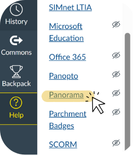
- From the Course Navigation Menu you can access the Course Report and other course-specific Panorama settings.
- Click on Panorama located in the Course Navigation Menu under Thirdy Party Tools.
- The reports in Panorama give you an overall glimpse of your scores, progress over time, and scores for specific types of content.
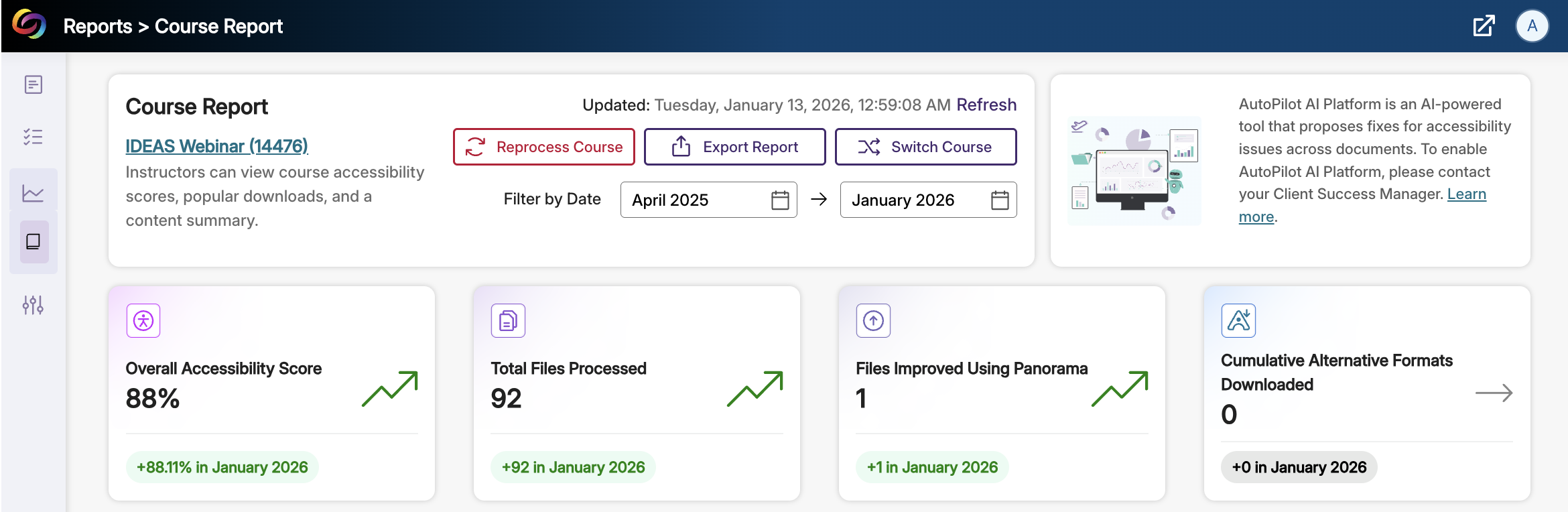
The Overall Accessibility Score in YuJa Panorama reflects the percentage of course content that meets accessibility standards based on automated scans of pages, files, media, and other instructional materials. It provides a high-level snapshot of how accessible your course is overall and helps provide a glimpse for instructors as to which items need remediation.
Canvas Content Remediation Decision Tree
The Canvas Content Remediation Decision Tree is designed to guide instructors step by step through the process of fixing accessibility issues identified in their course content. By asking a series of simple questions, it helps users determine the type of content they are working with (such as documents, images, videos, or web pages) and directs them to the most appropriate remediation strategy or support resource.
Recommended Workflow
Follow this recommended workflow to efficiently remediate accessibility issues and raise every item to over a 90% as well as your course’s Overall Accessibility Score 90% or higher.
1. Work Through Your Modules First
Navigate to Modules and review each item one at a time.
- Focus on the YuJa icon next to each item
- Red Hexagon and Yellow Triangle icons indicate accessibility issues
- Use Panorama’s Fix Issue or remediation guidance to resolve problems
Goal: Every item in Modules should display a green YuJa icon.
2. Recheck Your Course Report
Once all items in Modules are green, return to the Course Report and refresh the page. In many cases, this step alone will raise your course above the 90% threshold.
3. Clean Up the Files and Pages Area (If Needed)
If your score is still below 90%, navigate to Files or Pages from your Course Navigation Menu.
When You Have Two or More Sections
Accessibility Resources by Content Type
This section provides file-specific guidance to help you identify and fix accessibility issues across common content types used in Canvas. The IDEAS team offers open labs, training sessions, and individualized support throughout the semester to help faculty meet accessibility expectations with confidence.
Click on a content type below to access step-by-step resources, best practices, and remediation support.
Upcoming Events
| Date/Time | Event |
|---|---|
|
04/24/26 12:00 am |
Faculty Recognition Breakfast |

ATST Support Team
ATST@spcollege.edu
Call 727.341.3500
Mon.- Fri. 8:30am - 4:30pm EST (excluding college holidays).
Need Technical Help?
SPC Technical Support Center
Troubleshooting/Walkthrough solutions
(Logins, Computer, Phone, etc.)
Hours: 7:00am to midnight (7 days/week)
Email: onlinehelp@spcollege.edu
Phone: 727-791-2795 (faculty/staff line)
Website/Chat at the TSC website:
https://support.spcollege.edu
