
Yuja Panorama’s Course Report
YuJa Panorama’s Course Accessibility Report in Canvas is best understood as a high-level snapshot of how accessible your student-facing course materials are at a given moment in time. The overall score reflects the accessibility of items such as content in Modules, Files, and Pages, rather than a single issue that needs to be “fixed.” Because the report updates on a scan cycle, it’s normal for the score to temporarily lag behind recent changes. Seeing a lower score doesn’t necessarily mean something is wrong; it often means the report hasn’t yet caught up with your most recent improvements.
The most effective way to use the Course Report is as a guide, not a checklist. Focus first on ensuring that materials students see and use are accessible. Our recommended workflow is to start in Modules. Work through items there making sure that everything is over a 90% accessibility score. After Modules, go through the Files and Pages section of your course. Remember that accessibility remediation is an ongoing process, and that steady progress will have the greatest impact on both your score and the student experience.
Key Takeaways
- St. Petersburg College’s goal is for every course to achieve and maintain an accessibility score of 90% or higher.
- The Course Report reflects a point-in-time snapshot, not a live view of your course.
- The Overall Accessibility Score is a directional indicator, not an evaluation of teaching quality.
- Not all items listed, especially in the Files section, are actively used by students.
- Prioritizing student-facing, frequently used content yields the biggest impact.
- Accessibility improvement is iterative; progress matters more than perfection.
-
-
The Overall Accessibility Score
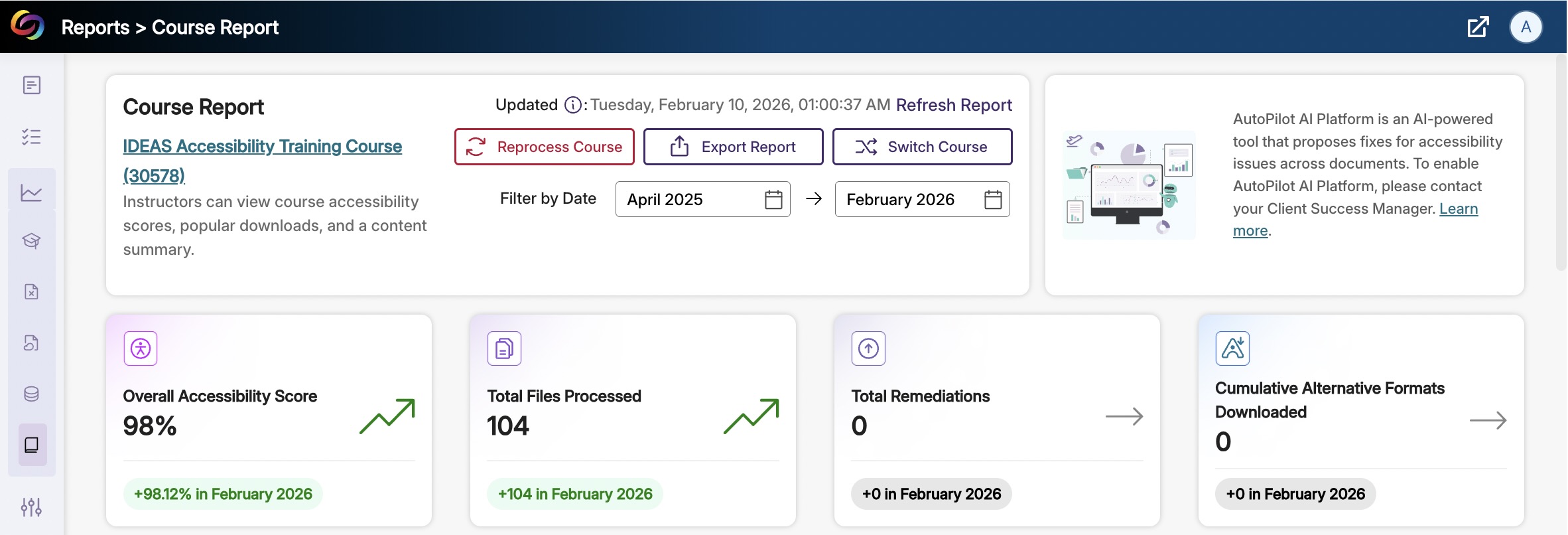
Course Identification
At the top left of the page, you’ll see:
- The course name
- The Canvas course ID
This confirms which course the report is analyzing. If you teach multiple courses, this is the first place to check before interpreting any data.
Report Timestamp
Near the top center, Panorama displays the last updated date and time of the report.
This matters because the Course Report is not live. It reflects the state of your course at the moment it was last processed. If you’ve made recent accessibility fixes, they may not appear until the report is updated.
Refresh Report vs. Reprocess Course
Refresh Report – Updates the report to reflect recent edits to existing content. This is typically faster and is used after small changes, such as adding alt text or adjusting headings.
Reprocess Course – Performs a deeper re-analysis of course content. This is usually used after replacing files or making larger structural changes and may take longer to complete.
Date Range Filter
The Filter by Date option allows you to control the time window used for the report.
Panorama analyzes content within the selected date range, which means:
- Older or deleted files may still appear
- Multiple versions of the same file may be listed
- The report reflects history, not just current files
This filter directly impacts everything you see below.
The Overall Accessibility Score
The Overall Accessibility Score shows the percentage of content that meets accessibility standards within the selected date range.
Key things to know:
- This score is a directional indicator, not a grade
- A high score reflects strong accessibility coverage
- Small changes can cause noticeable percentage shifts
The green trend arrow indicates improvement over time within the selected reporting period.
Total Files Processed
This tile shows the number of files Panorama analyzed during the selected date range.
Important context:
- This includes historical files
- It does not mean all files are currently visible to students
- A higher number does not necessarily indicate more work to do
This number is best used for context, not prioritization.
Total Remediations
The Total Remediations count reflects how many accessibility fixes were applied through Panorama’s remediation tools during the selected period.
A value of zero does not indicate a problem—it may simply mean:
- Files were already accessible
- Changes were made directly in Canvas or original documents
- Remediation tools were not needed
Cumulative Alternative Formats Downloaded
This tile shows how many times students downloaded alternative formats (such as tagged PDFs or text-based versions).
If this number is zero, it does not mean students are struggling, it simply means alternative formats were not requested or needed during the reporting window.
Important Considerations: Files and Issues Section
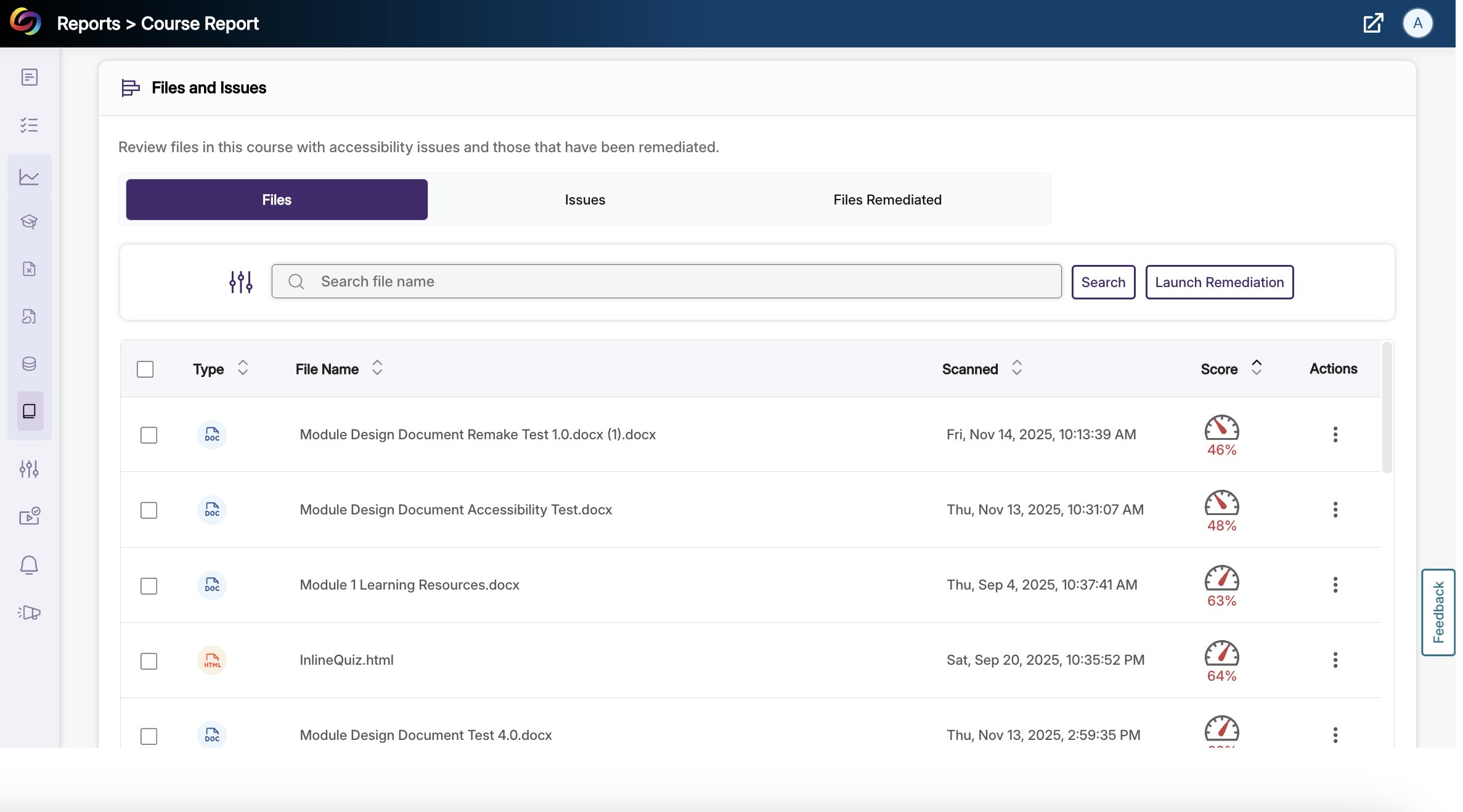
The Files and Issues section of YuJa Panorama’s Course Report provides a centralized list of files in your Canvas course that contain accessibility issues. This area helps instructors quickly identify which documents, PDFs, PPTs, or other uploaded files may need attention in order to improve the overall accessibility of the course.
 What This Section Shows
The Files and Issues panel displays files that Panorama has scanned and detected accessibility issues within. For each file, you may see information such as:
- The file name
- The date scanned
- The type of file (PDF, Word, PowerPoint, etc.)
- Additional actions
This section acts as a diagnostic overview of potential accessibility problems in course files.
How It Works
Panorama automatically scans files that are uploaded to your Canvas course and evaluates them against accessibility standards. When issues are detected, such as an untagged PDF, missing alt text, or contrast issues, the file will appear in the Files and Issues list.
Keep in mind that this section functions as a reporting dashboard, not the primary location where files are stored in Canvas.
Best Practice
Use the Files and Issues section as a guide for identifying accessibility concerns, but perform all file management tasks, such as replacing or deleting files, within Canvas Files. By using this section to locate problem files and then addressing them in the course’s file storage, you can more efficiently improve your course’s overall accessibility score.
Accessibility Resources by Content Type
This section provides file-specific guidance to help you identify and fix accessibility issues across common content types used in Canvas. The IDEAS team offers open labs, training sessions, and individualized support throughout the semester to help faculty meet accessibility expectations with confidence.
Click on a content type below to access step-by-step resources, best practices, and remediation support.
Upcoming Events
| Date/Time | Event |
|---|---|
|
04/24/26 12:00 am |
Faculty Recognition Breakfast |

ATST Support Team
ATST@spcollege.edu
Call 727.341.3500
Mon.- Fri. 8:30am - 4:30pm EST (excluding college holidays).
Need Technical Help?
SPC Technical Support Center
Troubleshooting/Walkthrough solutions
(Logins, Computer, Phone, etc.)
Hours: 7:00am to midnight (7 days/week)
Email: onlinehelp@spcollege.edu
Phone: 727-791-2795 (faculty/staff line)
Website/Chat at the TSC website:
https://support.spcollege.edu
